

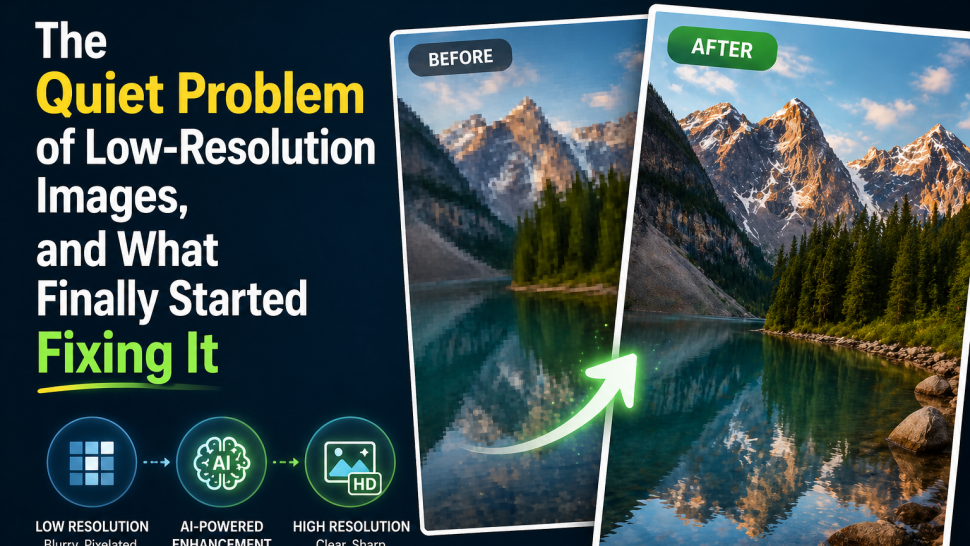

Pretty much everyone has run into this. You find a photo you want to use somewhere — maybe an old picture of yourself, a product shot for a listing, an image saved from a website years ago — and at thumbnail size it looks fine. The moment you open it properly, or try to zoom in even a little, the whole thing falls apart. Soft edges, blurriness, pixelation. The detail you thought was there just isn't.
For a long time that was the end of it. You either used the image anyway and hoped nobody noticed, or you didn't use it at all. Some people would spend an hour in Photoshop trying to sharpen things, but the result usually looked worse than the original — just a sharper version of a bad photo.
What's changed in the last few years is that AI has actually gotten reasonably good at this. A free AI image upscaler online can take a small, soft, almost unusable image and produce something noticeably better. Not always perfect. But often surprisingly close to what you wish the original had looked like.
Why Image Quality Suddenly Matters Everywhere
Here's the thing nobody talks about: the screens we view images on have gotten dramatically better. Phones with retina-density displays. 4K monitors. Laptops shipping with screens that show pixel-level detail you couldn't see ten years ago. A photo that looked acceptable in 2014 looks rough on a current phone, and the photo didn't change. The display just shows more.
The shift hits different categories in different ways.
E-commerce sellers feel it first. Amazon and Shopify both have minimum image quality recommendations that a lot of small sellers struggle to meet, especially when they're working with manufacturer-supplied product photos that were never taken at proper resolution to begin with. A blurry product image hurts conversion rates measurably, and platform search algorithms tend to demote listings with poor image quality.
Print is even less forgiving. A photo that looks fine on a phone screen often falls apart at print resolution. You don't notice until you've paid for the print and it arrives looking soft and weirdly digital.
Social media compresses everything you upload further, which means starting with something low-resolution leaves you with almost nothing usable on the other end.
What people don't realize is how much of this is actually a resolution problem rather than a "bad photo" problem. The composition is fine. The subject is fine. There just aren't enough pixels for modern screens or print sizes. Different problem entirely, and one that AI is uniquely positioned to solve.
How AI Upscaling Actually Works
Quick version, without going too technical: traditional image enlargement just stretches existing pixels across more space. You take a 500×500 image and enlarge it to 2000×2000, and you're spreading the same amount of information across four times the area. Result: blurry mess. Everyone's seen this.
AI upscaling is different. The model has been trained on millions of paired images — low-resolution and high-resolution versions of the same content — and over time it learned what detail actually looks like at higher resolutions. What skin pores look like up close. How fabric weave shows up in sharp photos. What individual leaves on a distant tree look like when properly resolved.
When you feed in a low-resolution image, the AI doesn't just stretch it. It predicts what detail probably should be there based on everything it learned during training. Adds it pixel by pixel.
It's reconstruction, basically. Educated guessing at scale. Results aren't a perfect recovery of detail that never existed in the original — but they're often close to what the photo would have looked like if it had been captured at higher resolution to begin with.
Which is why an AI image sharpener free of complicated setup can now produce results that would've taken a skilled retoucher hours to approximate manually.
What Most Free Tools Get Wrong
If you've gone looking for image upscaling tools online, you've probably noticed a pattern. Almost every "free" option has some catch:• Watermark stamped across the output
• Sign-up wall before you can even test it
• Free tier that lets you process two images and then locks you out
• Output capped at some uselessly low resolution
• Compressed downloads that defeat the point of upscaling in the first place
• Sharpening filters dressed up as AI but producing the same crunchy edges as basic Photoshop
People aren't trying to scam free professional services. Usually they just want to fix one specific photo, or test whether the tool actually works before doing anything more. Most "free" upscalers make that surprisingly hard.The other issue: not every AI upscaler is equally good. Some produce smooth, plastic-looking faces. Others over-sharpen and leave halos around edges. The output quality varies wildly between tools that all claim the same thing.
A Free AI Image Upscaler Online That Actually Works
Stellar's Free AI Image Upscaler Online is one of the genuinely usable options in this space. Two upscale ratios — 2x or 4x — both processed in the browser, no install, no signup, no watermark on the output. Works with JPG, PNG, JPEG. Three steps total: upload, pick a ratio, download.
Files get processed and then automatically deleted from the server within a short window. Important detail when you're uploading personal photos or work-in-progress design files.
It's not the only AI upscaler out there. But genuinely free ones — meaning no watermark, no signup, no aggressive cap that kicks in after two images — are rarer than people assume. Most of what's marketed as free is some version of "free until you want anything actually useful.
For typical use cases, this one handles the things that matter. Blurry photos sharpen up well. Pixelation smooths out. Compressed images recover detail. Output comes back at the full upscaled resolution, which is the part that most "free" tools quietly fail at.
Where People Actually Use This
The use cases are wider than you'd expect.
Old family photos. Most common scenario, honestly. Scanned photos from the 70s and 80s often come out softer than the originals because home scanners aren't great and the photos themselves have aged. A 4K AI photo enhancer recovers a lot of perceived detail, making old photos genuinely usable for printing or framing. Combined with a free AI face enhancer for portraits, the results on family photos can be surprisingly good — particularly for faces, which AI handles well now.
E-commerce product photos. Huge category. Small sellers working with manufacturer-supplied images that are too small or too compressed for platform requirements. A free AI upscaler for e-commerce product photos can take a 600px wide product shot and produce a clean 2400px version suitable for Amazon, Shopify, Etsy, or anywhere else with quality requirements.
Anime and digital art. This is one of the strongest use cases for AI upscaling, surprisingly. Models trained on illustrated content preserve clean lines and flat colors in a way traditional upscaling completely fails at. The best AI upscaler for anime and illustrations can take a small piece of art and scale it cleanly to print resolution without introducing the smearing artifacts bicubic enlargement creates. Some artists upscale AI art to 8K or 16K when they need work at large display or print sizes.
Logos and graphics. A really common problem: small business has a small JPG of their logo and lost the original files. While AI can't literally convert low-res logo to vector AI files — that's a fundamentally different process — it can produce a clean enough raster version to either use directly or retrace manually if you need actual vector output.
Portraits and faces. Modern face enhancement has gotten remarkably good. Old social media profile pictures, group photos where someone's face is too small to see clearly, ID photos that need to be enlarged for print. People usually notice this when they try to print a screenshot of a video call and realize how bad it actually looks.
Marketing teams working with stock images or client-supplied assets often need to increase image resolution online free of cost and without an account hassle. Saves a lot of back-and-forth on small jobs.
How It Compares to Photoshop
Photoshop has had decent enlargement features for years, including its own AI-based "Super Resolution" option in newer versions. For someone who already pays for Creative Cloud and knows what they're doing, that's still a strong option.But for everyone else — and that's most people — a browser-based tool that handles upscaling automatically is more practical. The output isn't necessarily better than Photoshop's, but it's good enough for almost any non-professional use case. And it doesn't require software installation, learning, or a $20+ monthly subscription.
For occasional use, a free AI image upscaler no sign up requirement wins on every dimension that matters to a casual user.
Batch work is a slightly different question. A batch AI image upscaler free of cost is harder to find. Most free tools handle one image at a time, which gets tedious for hundreds of files. For that kind of volume, paid tools or local AI models start to make more sense. For tens of images though, even processing them one at a time in a browser is fine.
Common Questions
Will the upscaled image look natural?
In most cases, yes. Works best on images with clear subjects, decent lighting, and only moderate quality issues. Heavily damaged or extremely low-resolution stuff can come out weird — overly smooth skin, hallucinated details, strange textures. Worth previewing before committing to anything important.
Can it really fix a blurry photo?
A blurry photo fixer AI handles slight softness, motion blur, and compression artifacts well. Catastrophically out-of-focus shots, less so. AI is reconstruction, not invention.
No watermark, really?
Yes. Downloaded file is clean. Some other tools sneak watermarks in — this one doesn't.
Phone support?
Works in any modern mobile browser. Useful when you don't want to transfer files to a desktop first.
Privacy?
Files encrypted during upload, automatically deleted from the server within a short window. Not stored permanently or shared.
File formats?
JPG, JPEG, PNG. Standard outputs from any phone camera or scanner.
A Practical Suggestion
If you've been holding onto images you wrote off as too low-quality to use — old photos, product shots, screenshots, scanned documents, art files — it's worth running one or two through an AI upscaler just to see what comes back. Sometimes the result is dramatic. Sometimes it confirms the photo really is too far gone. Either way, you'll know in two minutes.
Stellar's tool is a reasonable place to start. Free, no account, no watermark, full-resolution output. If it works for what you need, great. If not, you've lost nothing trying.
The bigger point is that image quality has stopped being a permanent verdict. That's a real shift, and most people haven't fully caught up to it yet.
Share the News